

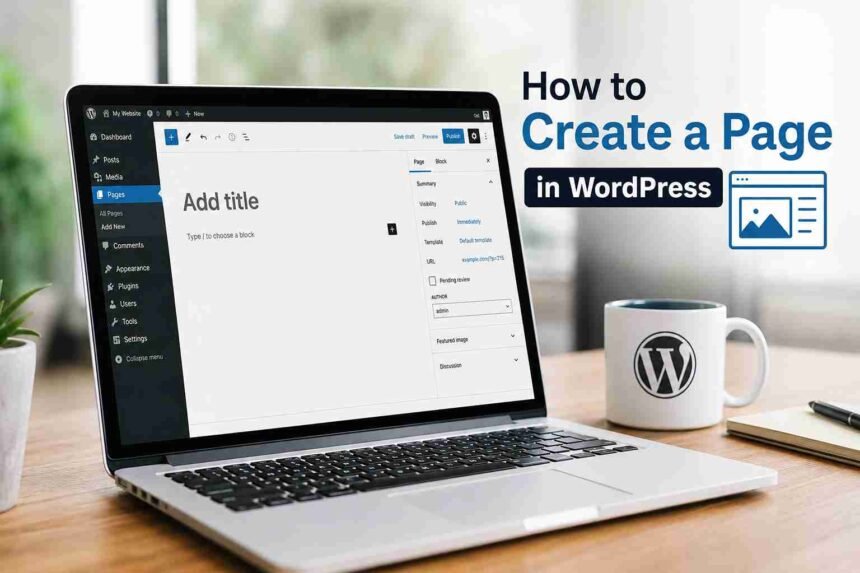
After installing WordPress, learn how to create a page in WordPress. Creating a page remains a common first task for new sites.
Pages are commonly used for important website sections such as About, Contact, Terms and Conditions, Privacy Policy, and Home.
This approach demonstrates how to create a page in WordPress and its non-date content.
The good news is that you do not need to know HTML or CSS to create a professional-looking WordPress page.
The modern WordPress Block Editor lets you build a page by combining blocks.
Learn how to create a page in WordPress by adding paragraphs, headings, images, and more.
This tutorial covers how to create a page in WordPress.
You will also learn to format, preview, publish, edit, and delete a WordPress page.
We will also explain the difference between a page and a post, how to create a parent or child page, how to change a page URL, and what to do if your WordPress editor looks different from the one shown in this guide.
What Is a Page in WordPress?
A WordPress Page is a type of content generally used for information that is not organized chronologically.
For example, a website might have these pages:
- Home
- About Us
- Contact
- Services
- Pricing
- Privacy Policy
- Terms and Conditions
Pages can also be organized into a hierarchy.
For example:
Services
→ Web Design
→ SEO Services
→ WordPress Maintenance
This allows you to create a logical structure for larger websites.
WordPress’s official documentation distinguishes Pages from Posts by describing Pages as non-chronological content that exists outside the normal blog chronology.
WordPress Page vs Post: What’s the Difference?
Before creating your first page, it is worth understanding this distinction.
Pages
Pages are generally used for permanent or relatively timeless website information.
Examples:
- About
- Contact
- Services
- Homepage
- Privacy Policy
Posts
Posts are generally used for regularly published content such as:
- Blog articles
- News
- Tutorials
- Announcements
- Updates
Posts are normally organized chronologically and can be grouped using categories and tags.
For example, on a WordPress tutorial website:
Pages
- About
- Contact
- Editorial Policy
- Privacy Policy
Posts
The distinction is not about whether one type is “better.” It is about how you want your content organized.
How to Create a Page in WordPress
Let’s create a basic WordPress page from the dashboard.
Step 1: Log In to WordPress
Log in to your WordPress administration area.
For most standard installations, you can access it through:
yourdomain.com/wp-admin/
After logging in, you should see the WordPress dashboard.
If you are having trouble accessing the dashboard, read our guide on how to log in to WordPress.
Step 2: Open Pages
From the WordPress administration menu, go to:
Pages → Add New
You can also go to:
Pages → All Pages
and select Add New from there.
WordPress’s official documentation identifies Pages → Add New as the standard route for creating a new page.
A new page editing screen will open.
Step 3: Add a Page Title
At the top of the editor, click the area where WordPress asks you to add a title.
Enter your page title.
For example:
About Us
or:
Contact Us
Your title should clearly describe the purpose of the page.
Avoid vague titles such as:
Welcome
unless that is genuinely the name you want visitors to see.
For important pages, use straightforward names that visitors immediately understand.
Step 4: Add Content to Your Page
Below the title, you can start adding content.
The WordPress Block Editor uses individual blocks to build the page. The official WordPress documentation describes blocks as the fundamental content elements used to create pages and posts.
A paragraph is usually the first block you will see.
Start typing your content.
For example:
We help small businesses create fast, secure, and easy-to-manage WordPress websites.
You can then add additional blocks underneath it.
How to Add a New Block
There are several ways to add blocks in WordPress.
Method 1: Use the Plus Button
Click the + button to open the Block Inserter.
You can then search for the block you want.
For example, search for:
Image
Heading
Button
List
Gallery
Columns
Method 2: Type a Slash Command
You can also type / in an empty paragraph block.
For example:
/image
WordPress will display matching blocks.
Select the block you want and continue editing.
The official WordPress documentation lists the Block Inserter, the inline plus button, and the slash command as common ways to add blocks.
Useful Blocks for a WordPress Page
You can build surprisingly sophisticated pages using the blocks included with WordPress.
Here are some of the most useful ones.
Paragraph Block
Use the Paragraph block for regular text.
Heading Block
Use headings to divide your content into logical sections.
For example:
H2: Our Services
H2: Why Choose Us
H2: Contact Us
You can then use H3 headings beneath an H2 when appropriate.
Image Block
The Image block lets you add an image to your page.
You can:
- Upload an image
- Choose an image from the Media Library
- Insert an image from another available source
WordPress provides a dedicated Image block for adding images to posts and pages.
List Block
Use the List block for:
- Features
- Services
- Benefits
- Instructions
- Requirements
Lists are often easier to scan than large paragraphs.
Button Block
Buttons can be useful for important calls to action.
For example:
Contact Us
Get Started
View Services
Columns
Columns allow you to place content side by side.
For example, a services page might have three columns:
Web Design
SEO
Maintenance
Be careful not to create overly complicated layouts simply because WordPress lets you do so.
A page should remain easy to understand on both desktop and mobile devices.
How to Format Text in a WordPress Page
Select the text or block you want to format.
Depending on the selected block, you may see formatting controls such as:
- Bold
- Italic
- Link
- Alignment
- Text color
- Background color
- Typography
- Spacing
The options available depend on the block, theme, and WordPress configuration.
The Block Editor uses a block toolbar and a settings sidebar to provide contextual editing controls.
How to Add a Link to a WordPress Page
Adding internal and external links is straightforward.
Step 1: Select the Text
Highlight the text you want to turn into a link.
For example:
Learn more about WordPress plugins
Step 2: Click the Link Button
Select the link icon in the block toolbar.
Step 3: Enter the Destination
Enter or search for the URL you want to link to.
For an internal link, WordPress can allow you to search your existing content.
Step 4: Apply the Link
Confirm the link.
Always test important links before publishing the page.
How to Add an Image to a WordPress Page
Images can make pages more useful and visually engaging.
To add one:
- Add an Image block.
- Choose Upload or select an existing image from the Media Library.
- Choose your image.
- Add appropriate alternative text.
- Adjust the image settings if necessary.
- Preview the page on different screen sizes.
What Is Alt Text?
Alternative text, commonly called alt text, provides a text description of an image for situations where the image cannot be seen or loaded.
It can also help communicate the image’s purpose to people using assistive technologies.
Do not stuff keywords into alt text.
Describe the image when the description provides useful information.
For example:
Good:
WordPress Settings page showing the General Settings panel
Poor:
best WordPress settings WordPress tutorial WordPress settings guide
The first describes the image. The second is essentially keyword confetti.
How to Add a Featured Image to a Page
Whether a page has a featured image option and how that image is used depends on your theme.
If your theme supports featured images for pages, you may find the option in the page settings sidebar.
A featured image can be used by your theme in places such as:
- Page headers
- Page archives
- Related content
- Social previews
However, simply assigning a featured image does not guarantee that WordPress will display it publicly.
The theme determines how that image is used.
How to Change the Page URL
WordPress creates a URL, or slug, for your page based on its title.
For example, if your page is called:
About Us
the URL may become:
example.com/about-us/
You can generally edit the page’s URL slug from the page settings.
A clean slug is usually preferable.
For example:
example.com/wordpress-services/
is easier to understand than:
example.com/page?id=123
Keep Your URL Short and Meaningful
A page URL should give visitors an idea of what the page contains.
Avoid unnecessary words and complicated structures.
Most importantly, do not keep changing the URL after the page has been published and linked elsewhere.
If you change an established URL, make sure the old address properly redirects to the new one.
How to Set a Parent Page
WordPress supports hierarchical pages.
Suppose you have a main page called:
Services
and want individual pages for:
- Web Design
- SEO
- WordPress Maintenance
You can make Services the parent page and the other pages its children.
Depending on your WordPress interface and theme, the parent page option can be found in the page settings.
The resulting URLs may look something like:
example.com/services/
example.com/services/web-design/
example.com/services/seo/
The exact URL structure can depend on your permalink and page configuration.
What Are Child Pages?
A child page is a page that sits underneath another page in the hierarchy.
For example:
Services
→ Web Design
→ SEO
→ Maintenance
Here, Services is the parent page.
The other three are child pages.
This structure can be useful for organizing large websites.
However, do not create parent-child relationships solely because they look neat in the dashboard. Use them when they genuinely help organize your site’s content and navigation.
How to Save a Page as a Draft
You do not have to publish a page immediately.
WordPress can save your page as a draft while you work on it.
This is useful when:
- The content is incomplete
- You need someone else to review it
- You are still designing the page
- You need to add images later
You can return to the draft through:
Pages → All Pages
Find your draft and open it for editing.
How to Preview a WordPress Page
Before publishing, preview the page.
Use the preview option in the editor to see how the page will appear on the front end.
Check:
- Desktop layout
- Mobile layout
- Headings
- Images
- Links
- Buttons
- Spacing
- Text formatting
Do not assume a page that looks perfect in the editor will look identical on every screen.
Your theme controls much of the final presentation.
How to Publish a WordPress Page
Once your page is ready, click:
Publish
WordPress may display a confirmation panel before making the page public.
Review the visibility and other publishing settings.
If everything looks correct, confirm the publication.
Your page is now live.
Open the published page and check it from the visitor’s perspective.
This final check is worth doing because editors are excellent at hiding tiny mistakes in plain sight.
How to Update an Existing WordPress Page
You can edit a published page at any time.
Go to:
Pages → All Pages
Find the page you want to change.
Click:
Edit
Make your changes.
Then click:
Update
The changes will be applied to the published page.
For important pages, preview the changes before updating the live version whenever possible.
How to Duplicate a WordPress Page
WordPress does not necessarily provide a standard duplicate-page workflow in every setup.
If you need to duplicate pages frequently, a suitable plugin can add this functionality.
However, do not install a plugin solely because you need to duplicate one page once.
For a single page, manually recreating the layout may be simpler.
For websites that regularly create similar landing pages, a properly maintained duplication or pattern workflow can save time.
How to Delete a WordPress Page
If you no longer need a page:
- Go to Pages → All Pages.
- Find the page.
- Choose Trash.
The page will be moved to the trash rather than immediately disappearing permanently.
Before deleting an established page, consider whether other pages, navigation menus, search results, or external websites link to it.
If a deleted page has useful traffic or backlinks, replacing it with an appropriate page or redirect may be better than simply letting the URL become a 404.
How to Restore a Deleted Page
If a page was recently moved to the trash, you may be able to restore it.
Go to:
Pages → Trash
Find the page.
Select:
Restore
The page should return to your list of pages.
The exact options available can depend on the current WordPress interface.
How to Create a Page Using a Block Theme’s Site Editor
Modern WordPress installations using[using a compatible block theme can provide another way to manage pages through the Site Editor.
In this environment, you may find page management under:
Appearance → Editor
The Site Editor’s Pages area can allow you to create, view, edit, and trash pages.
This workflow is different from the traditional:
Pages → Add New
experience.
The Site Editor Pages feature is available when a block theme is active, and it can show the page content together with the template used by the site.
Why Does My Page Editor Look Different?
If your screen does not match a tutorial showing Pages → Add New, do not immediately assume something is broken.
Your experience can vary because of:
- WordPress version
- Active theme
- Block theme vs classic theme
- Plugins
- User permissions
- Hosting environment
For a standard tutorial workflow, we will primarily use Pages → Add New and the Block Editor, while pointing out important differences when a block theme uses the Site Editor.
What Pages Should Every Website Have?
There is no universal list, but many websites benefit from having several foundational pages.
About Page
Explain who you are, what the website does, or what your organization provides.
Contact Page
Give visitors an appropriate way to contact you.
Privacy Policy
Explain relevant data practices and privacy information.
Terms and Conditions
Useful when your website has terms governing services, purchases, accounts, or other interactions.
Services or Products Page
Useful for business websites.
Homepage
Your homepage introduces visitors to the website and directs them toward important areas.
A website does not necessarily need every one of these pages. Create pages based on the site’s actual purpose.
How Many Pages Can You Create in WordPress?
WordPress does not impose a small fixed limit on the number of pages you can create.
You can create as many pages as your website’s hosting resources, database, architecture, and practical management requirements can support.
A small business website may have fewer than 20 pages.
A large organization may have thousands.
The more important question is whether your pages are organized logically and remain useful.
Common Problems When Creating WordPress Pages
I Can’t Find Pages → Add New
Check your user permissions.
Some WordPress user roles do not have permission to create or manage pages.
Plugins or managed platforms can also alter the available administration interface.
My Page Looks Different From the Editor
This is often caused by the active theme.
The Block Editor controls the content, but the theme can control:
- Header
- Footer
- Width
- Typography
- Colors
- Templates
- Spacing
Check the page on the front end before assuming the editor is malfunctioning.
My Featured Image Isn’t Showing
Assigning a featured image does not guarantee that your theme will display it.
Check your theme’s template and page design.
My Page URL Is Wrong
Check the page slug and your permalink settings.
If the page has already been published, avoid changing the URL without considering redirects.
My Page Isn’t Appearing in the Menu
Creating a page does not necessarily place it in your site’s navigation.
You may need to add it to your navigation structure.
Block themes generally manage navigation through the Site Editor, while some classic themes may provide a dedicated Menus interface.
My Page Is Not Showing on the Homepage
Creating a page does not automatically make it your homepage.
If you want a specific page to function as your homepage, configure the appropriate homepage display setting or use the relevant Site Editor workflow.
Frequently Asked Questions
| What is a page in WordPress? |
|---|
| A WordPress Page is a content type generally used for non-chronological information such as About, Contact, Services, and Privacy Policy pages. |
| How do I create a new page in WordPress? |
| Log in to your WordPress dashboard and go to Pages → Add New. Add your title and content, configure the page settings, then select Publish. |
| Are WordPress Pages and Posts the same? |
| No. Pages are generally used for more permanent website information, while Posts are typically used for chronological blog or news content. |
| Can I create a WordPress page without coding? |
| Yes. The Block Editor lets you create and format pages using visual blocks without requiring you to write code. |
| How do I add an image to a WordPress page? |
| Add an Image block, then upload a new image or select one from the Media Library. |
| Can I change a WordPress page URL? |
| Yes. You can edit the page slug. However, be careful when changing the URL of an already published page because existing links can break. |
| Can WordPress pages have parent pages? |
| Yes. WordPress supports hierarchical pages, allowing you to create parent and child pages. |
| How do I make a WordPress page my homepage? |
| Create the page first, then configure your site’s homepage display settings or use the relevant Site Editor workflow depending on your theme. |
| Can I edit a WordPress page after publishing it? |
| Yes. Open the page from Pages → All Pages, make your changes, and select Update. |
| Why does my WordPress page look different from the editor? |
| Your theme controls much of the final page presentation. Block themes, classic themes, plugins, and WordPress versions can also change the editing experience. |
Final Thoughts
To learn how to create a page in WordPress, you must understand the difference between pages, posts, blocks, and templates.
For most standard WordPress installations, start with:
Pages → Add New → Add your title → Build the page with blocks → Preview → Publish
You can then continue refining the page as your website grows.
If you are building a new WordPress website, some of the first pages you will probably create are Home, About, Contact, Privacy Policy, and Services.
Now that you know how to create pages, the next step is learning how WordPress handles blog content.
In the next tutorial, we will show you how to create and publish a WordPress post, including categories, tags, featured images, excerpts, URLs, scheduling, and the Block Editor.